Devices > Remote Devices > Modbus EFM EIE > Multi-Register Write Command

Multi-Register Write Command

A multi-register write command is a UIS command made up of one or more command components that writes to a set of registers (i.e., data group elements) in one or more data groups. It applies to most Modbus data groups with write functionality. Each data group included in such a command must conform to one or the other of the procedures described below. This command is not the same thing as a single-element data group, which enables you to specify one and only one register to read from and write to.

There are two methods to configure a multi-register write command:

The two methods for creating multi-register write commands may be used in different command components to make up a single UIS command.

See the following subsections for more information:

For more information, see UIS Commands.

Accepting the Command Component Default Parameters

Note: In order for a data group to be available for inclusion in a command, the data group must be instantiated for the remote device, the data group's DataGroup element must define the attribute uccSend as "true", and the data group must include at least one properly defined modbusWriteBlocks element.

If you want to include all data group elements in a data group in a UIS command, follow the procedure below. You do not need to write values to each of the corresponding registers, but each is included in the command message.

Example

The "Setup" data group command parameters as they appear on the UIS Commands editor:

Click for more information

To Configure a Multi-Register Write Command Using Defaults

  1. Using CygNet Explorer, open the Device Definition Service (DDS).
  2. Double-click the remote device.
  3. Click the UIS Commands page and click Add.
  4. Fill out the UIS Command Info.
  5. In the UIS Command Components group box, click Add.
  6. At Component Type, select Send data group to device [DG_T_DEV].
  7. In the Data Group Information group box, click Choose Group. All available data groups with write capability appear in the Choose Data Group dialog box that opens. If you do not see the desired data group, it either does not have write capability or it has not yet been added to your device.
  8. Select the desired data group and click OK. All of the data group's parameters (i.e., data group elements or registers) appear by default in the Parameters field.
  9. Double-click a parameter and enter a new value. Repeat for each parameter you want to change on a field device.
  10. When you are done, click OK to save and exit.

Overriding the Command Component Default Parameters

Note: In order for a data group to be available for inclusion in a command, the data group must be instantiated for the remote device, the data group's DataGroup element must define the attribute uccSend as "true", and the data group must include at least one properly defined modbusWriteBlocks element.

If you want to write to a subset of data group element IDs in a data group in a UIS command, follow the procedure below. Each user-specified data group element ID is repackaged into its own message. Depending on your specific setup, this might be more or less efficient than just writing to all available registers.

Example

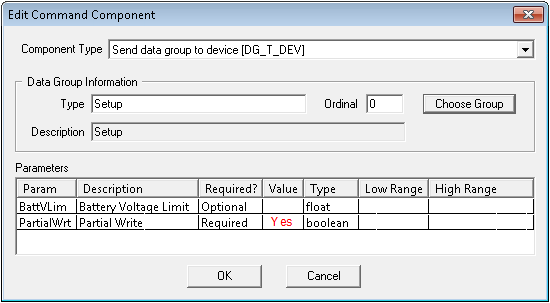
The "Setup" data group command parameters as they appear on the UIS Commands editor:

Click for more information

To Configure a Multi-Register Write Command Using uccSendParms

  1. Open the Modbus template for which you want to add send parameters.
  2. Go to the data group(s) you want to modify and add a valid uccSendParms element.
  3. Add a SendParmName empty element called PartialWrt. Include desc, required, and type attributes along with relevant values in the PartialWrt element.
  4. Add a SendParmName empty element for each parameter (i.e., data group element or register) you want to send to a field device.
  5. Save your template changes and close the template.
  6. Validate and reload the template using the CygNet Device Template Manager utility.
  7. Perform steps 1 – 10 above for the affected data group(s), setting the PartialWrt value to Yes in the Edit Command Component dialog box. Note that instead of all of the data group parameters appearing by default in the Parameters field, only those you defined in the device template file appear.
Back to top

Let us know how we can improve this topic.

CygNet at weatherford.com

© 2020 Weatherford. All rights reserved.